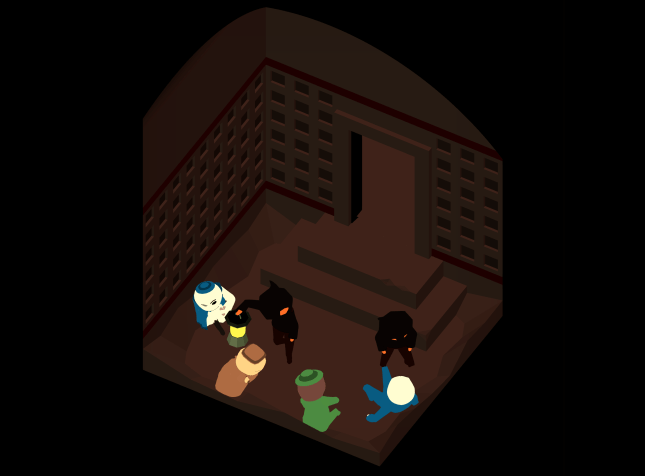
Going Gold

We’ve come to the part of the development cycle that no artist ever enjoys: the gold-stamping process. What is this mysterious “gold-stamping?” Why do artists despise it so? You thought it was just fixing bugs and making small tweaks, didn’t you? Well, read on to find out…


You’re reading the development blog for Where Shadows Slumber, a puzzle game coming to iOS and Android later this year. Check out our free Demo here.


LevelProgress.JPG

Gold Stamping: The Point of No Return

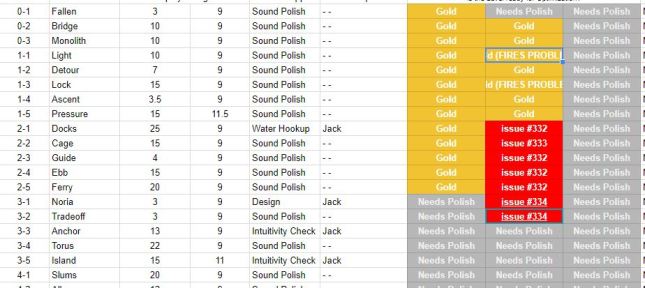
Every project must come to an end eventually. In order to make sure your game is ready for the whole world to see, every piece of it must be tested individually. Then, the entire game has to be tested as one unit. Before we can move on to that final testing phase, every Level, Cutscene, and Menu in the game needs to be approved by three teams: Art, Sound, and Development.

The Art team is just me – and the Development team is just Jack. Alba and Noah work on Sound together. That means we need three approvals for each Level, Cutscene and Menu. Approval means “I’m done working on this Level forever – there is absolutely nothing left to do. Put it in the game.” (See the screenshot above for a look at our spreadsheet that has each Level listed as well as the “Gold” stamps)

There’s a specific order we have to do this in, as well. I need to put my “Gold Stamp of Approval” on Levels before Sound does, because I’m in charge of the game’s visuals. If I add a blazing torch to a Level after Sound has “gold-stamped” that Level, they’ll need to come back and give that torch some kind of looping audio. Art and Sound need to gold-stamp the Level before Jack takes over, because he’s duplicating each Level in the game into a separate file and running an optimization process on that Level.

This optimization process takes time, and destroys the editability of the scene. (By way of analogy, consider what happens to a Photoshop file when you Flatten it into a JPG file. The JPG takes up less space on your computer, but you lose the editable Layers from Photoshop) Jack is able to lower the time it takes your phone to render a frame of the game by “crunching” these Levels. If your phone can render a frame faster, the game will feel smoother. Players hate lag more than they hate bad graphics or design, because it interrupts the flow of play. Everything we’re doing now is to make the game run smoothly even on older devices.

But you can see the problem: if Art or Sound has to tell Jack that they made changes to a Level, one of two things happen:

(a) We need to make that change in both the original Scene and the crunched Scene

(b) OR… Jack needs to start the optimization process for that Scene over again

Option A introduces the possibility of human error. Have you ever made a mistake copying something down by hand over to another sheet of paper? Imagine that with a bunch of tiny numbers and sliders in Unity! Unfortunately, Option B wastes time we don’t have. And since “crunching” makes these Levels unable to easily edit, there is no Option C.

In the late stages of the project, we’re in a mad dash to finish each Level and hand them off to Jack. We’re a bit on top of each other at the moment, and tensions are high. Some of our beloved changes won’t make it into the first release of the game and may have to be stealthily added as a patch later on. (Shhhh don’t tell anyone I said that, blog reader)

Those are all the downsides of gold-stamping. Enough complaining: let’s talk about why this process makes the game so much better!


HowEmbarrassing.png

iPhone X Stretching

We began working on this game long before the iPhone X was announced. Since we designed the game in portrait mode, we planned for it to work in 9:16 resolutions as well as 3:4 resolutions. The plan was simple: we would assume you had the tiniest screen there was (9:16) and make sure you could solve the puzzle using everything you saw. And then, if you had a large screen, your screen would show more of the artwork surrounding the puzzle… but not any more key information. (Our demo works this way. Download it for free on a few devices to see what I mean.)

The iPhone X dashed our hopes when it launched, since it has a very thin and tall screen. When we booted it up on an iPhone X earlier this year for the first time, we noticed that key puzzle information was being cut off! Furthermore, there were sections above and below the Scene that I never planned for human eyes to see. We had to fill those sections in with art, or iPhone X users would know the game wasn’t made for them.

Here’s another analogy: imagine if you were designing the set for a Broadway musical. You do all your work, and then a week before opening night your director comes to you and says: “Listen, we’re lowering the stage by 2 feet and extending the ceiling by 2 feet above the stage. Do you think your set will still look good?”

The correct answer is: “yes, but I need to extend the artwork so it doesn’t cut off!” It’s ok if your art bleeds over into a section that human eyes will never see. But you can’t have your screen bleed over into artwork that isn’t finished or cuts off arbitrarily!

Fortunately, Jack solved our width problem by writing a Camera Resizing script that adjusts the Orthographic camera size to the proper width depending on your hardware. (Thank God for Jack, lol. Just that script alone would take me the full 3 years we spent working on this game to complete) I am solving our height problem by extending the shadowy silhouettes on each Level where appropriate, and adding more art where it’s necessary.


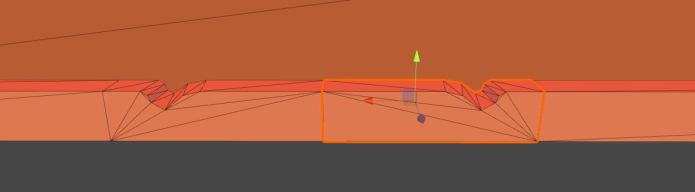
TooManyVerts.JPG

Low Poly Means Low Poly

When you set out to make a low-poly game, you aren’t just deciding on an art style. You’re also setting boundaries for how much the game will need to handle. This is why you’ll see a lot of cartoony artwork on mobile games and MMOs. Both of those are situations where you want the game to run on low end devices like old phones (mobile games) or old computers (MMOs). Cartoony graphics let you show what you want without having high-resolution textures or incredibly detailed model topology. It isn’t just an artistic decision – it’s also a marketing, business, and programming decision.

However, just because I said that I would do low-poly art doesn’t mean I kept my promise. There are a lot of Levels that go wildly above our Triangle / Vertex budget. (See the screenshot above, with emphasis on the Tris and Verts) Unity counts the number of Tris and Verts that are displaying on the screen at one time. Jack wants us to be well under 100k of each. That may sound like a high number, but you’d be surprised by how even simple scenes can skyrocket to 150k. When he finds Levels that are egregiously “over-budget,” he sends them over to me so I can make reductions.

Fortunately, Tri / Vert budgets are not like monetary budgets. If Jack told me not to spend $100,000 dollars, and then I bought a yacht, we’d be $100K in the hole. (But, we’d have a boat. Jack, I urge you to reconsider this proposal.) With polygons, as long as I cut down on fatty models before the game launches, no one will ever know. Except for the readers of this blog, of course. But you’re sworn to secrecy! Don’t share this post.

There is one more thing about this I discovered: Unity’s lighting system counts polygons in a very strange way. You can’t always trust their readout. I discovered that multiple lights require Unity to count the same object multiple times. If a cube has 8 Verts and one light is lighting it up, Unity will show 8 Verts. If there are six lights on it, Unity will show 48 Verts. So there’s some Levels that Jack will reduce once he does his big crunch, since he rewrote how our Lights will work to make them all act as one super-Light. (More wizardry, I’m sure.)

We’re doing all we can to make the game run fast on your phone. If it’s still lagging, get a new phone!


TextureAtlas.png

File Formats and Compression

This is the kind of boring stuff that puts artists to sleep, but it’s important. Unity imports textures, models, and audio files according to a standard. You can set the standard somewhere, but we never did. Instead, I am going through every file in the game and asking the had question: does this really need to be as large as it is?

The answer is usually “no!” which is good. I’m crunching a lot of textures down from 1024 x 1024 to 32 x 32 pixels, Unity’s smallest maximum size for images. Noah and Alba also did a bunch of audio crunching that I can’t really explain properly. You’ll have to wait for their revealing tell-all novella (Where Shadows Is Grongus: Nightmare Stories From Development Hell) for all the juicy secrets!

One more thing about textures: it might not be super necessary for me to make these textures smaller after all. Jack is actually doing this crazy optimization thing where we have every texture on one big image called a Texture Atlas. This image is as small as I can make it and has every texture in it laid out like a grid. We have one of these for every Scene in the game (Levels and Cutscenes) and when the game wants to render an object that uses a texture, it’s going to go to this image and pick from the proper coordinates.

This is insane and Jack explained it to me once and it’s insane and I’m sure it will make the game run super fast. If I’m remembering correctly, Jack told me that the rendering system needs to pause and switch gears every time it has to render a new Material. (So if the grass is GreenMaterial and the tree is TreeMaterial, the renderer needs to pause and switch) If it never has to switch like that, the rendering process should go way faster. The way to do that is to make one Material with the Level specific Texture Atlas called “Scene-0-2-Atlas” or something and put that on each object with the right coordinates. We’ll have fewer batches to render, and you’ll never even know what’s going on under the hood!

I’m going to stop giving the layman’s explanation here before I embarrass myself by showing my limited knowledge. But look forward to Jack’s upcoming tell-all blogella (Life With Frank: The Man Who Knew Nothing) for all the juicy secrets!

 

rubber stamp APPROVED

See You In Hell

This is going to be a rough week. This lengthy process is taking longer than I would have liked, and I’ve been pulled away from animating the final cutscenes. I desperately want to get back on track so Alba and Noah have enough time to work on the audio score for the final cutscenes.

Thanks for reading this blog post – I have to get back to gold-stamping!


= = = = = = = = = = = = = = = = = = = = = = = = = = = = = = = = = = = =

We hope you enjoyed this update about the game’s development. Have a question about aesthetics that wasn’t mentioned here? You can find out more about our game at WhereShadowsSlumber.com, ask us on Twitter (@GameRevenant), Facebookitch.io, or Twitch, and feel free to email us directly at contact@GameRevenant.com.

Frank DiCola is the founder of Game Revenant and the artist for Where Shadows Slumber.
Unity’s Performance Debugging Tools

Last week I discussed some of the basics of how rendering works in Unity. As I mentioned, all of that was setup for this week’s blog post. Since I’m working on rendering optimization now, I figured it would be a great time to go over the debugging tools Unity provides in order to aid rendering performance. Online resources can be a little scarcer for rendering than they are for other aspects of coding, so hopefully anyone who’s working on their own game might glean some useful information from this post. And even if you’re not working on anything right now, I hope you follow along and maybe learn a bit!

Unity is a nice little game engine, and, as such, it does a lot of the work for you. For the most part, when making a game, you don’t have to worry about the nitty-gritty stuff like rendering. When building for mobile, however (especially when you have specific graphics/lighting customization), you might have to descend into shader-land. Fortunately, Unity provides a few tools that can help you to deal with optimizing your rendering pipeline.


4-24-Profiler.JPG

Profiler

The first step in fixing rendering performance issues is to know about them. The best way to do that is with the Profiler window (Window -> Profiler). While you’re running your game, the Profiler keeps track of a lot of incredibly useful information, like how long each frame takes to render, split up by category. For instance, the Profiler will tell me that a frame took 60 milliseconds to run, 40 of which were due rendering and 15 from script execution, etc. This is the first place you should check when trying to improve performance – there’s no point in optimizing your rendering if it’s actually your scripts that are running slowly!

profiler

So much information!

For the purposes of rendering, there’s an entire Profiler section! The Rendering Profiler keeps track of the number of batches, setPass calls, triangles, and vertices in each frame. Looking here for inconsistencies, spikes, and just high numbers in general is a good way to get an idea of why your game is taking so long to render. The Profiler also has a lot of other info that’s useful for diagnosing and debugging performance problems. I really recommend profiling your game and thoroughly looking through the results to get as much information about how your game is running as possible.


android_debug_bridge

Android Debug Bridge

While profiling in the editor is pretty useful, it doesn’t tell us much – of course our game will be fast on a great big computer, but how does it run on a crappy phone?

The is where ADB, or the Android Debug Bridge, comes in. ADB allows your computer to communicate with your Android phone about all sorts of stuff. Specifically (for our use cases), it allows you to profile your game while it’s running on a device. If you plug your phone into your computer, build the game directly to your phone, and open the profiler, you should see some results. This is the information we want, because it tells a much truer story about how your game runs on a phone.

Where Shadows Slumber, for instance, runs at ~200 fps in the Unity editor. When I plug my phone (the Google Pixel 2) into the profile, I get a framerate of ~60 fps. This is pretty good, so I know our game can run on newer devices. However, when I plug in my old phone (a broken HTC One M8), I get closer to ~12 fps. Looking at the profile during this run will give me much more useful information about what I should fix, since this is the device where performance is actually suffering. If you’re making any big decisions or changes based on profiler results, make sure those results come from your actual targeted device, and not just from the editor.

ADB usually comes with the Android SDK – if you have the Android SDK set up with Unity (which allows you to build to Android devices), then you should be able to use ADB with the profiler pretty painlessly.

I should also mention that there might be an equivalent tool for iOS debugging, but, as I do all of my development on a Windows machine, and all of my testing on an Android phone, I wouldn’t know what it is. Sorry!


4-24-Header

Frame Debugger

The next most important tool for rendering performance is the Frame Debugger (Window -> Frame Debugger). While the Profiler tells us a lot about what’s happening during rendering as a whole, it still treats the rendering process as a black box, not letting us see what’s actually happening. The is where the Frame Debugger comes in – it allows us to see, step by step, exactly what the GPU is doing to render our scene.

As I mentioned last week, the GPU renders the scene through a bunch of draw calls. The Frame Debugger allows us to see what each of those draw calls is drawing. This allows us to determine which materials/shaders are causing the most draw calls, which is one of the biggest contributors to rendering lag. It also provides a bunch of information about each draw call, such as the properties passed to the shader or geometry details. The important thing that it tells you is why this draw call wasn’t batched with the previous draw call.

frame debugger

All of this happens in a single frame

Batching is Unity’s first defense against rendering lag, so it makes sense to batch as much stuff into a single draw call as possible. Because rendering is such a complex process, there are a lot of reasons why draw calls can’t be batched together – certain rendering components simply can’t be batched, meshes with too many vertices or negative scaling can’t be batched, etc. The frame debugger will tell you why each draw call isn’t batched with the previous one, so you can determine if there are any changes you can make that might reduce the number of draw calls, thereby improving rendering performance.

For example, in Where Shadows Slumber, we re-use meshes in certain places. Sometimes, if we require a “mirrored” look we’ll reuse a mesh, and then set the scale to -1. This was before we really looked into rendering performance, and, unfortunately, it causes problems – a mesh with negative scaling can’t be batched with a mesh with positive scaling, so this ends up creating multiple draw calls. Rather than setting the scale of the object to -1, we simply import a new, mirrored mesh and update the object, allowing these draw calls to be batched and improving performance.


4-24-Stats.JPG


Stats

That’s it for the heavy-hitters; between the Profiler, Frame Debugger, and ADB, you should be able to get a pretty good idea of what’s going on in render-land. Unfortunately, digging through them can take a while – sometimes you just want a quick indicator of what’s going on in your scene. Enter the Stats window.

The Stats window (click “Stats” in the Game View) is a small overlay in the game view which gives you a quick rundown of various rendering indicators in real time. It’s not as in-depth, but it gives a much quicker picture of performance.

stats

That’s a lot of batches!

While it sounds like the stats window doesn’t add much – after all, the Profiler can give you the same information – I’ve found it to be very useful. The Profiler is probably better when you’re actively debugging rendering performance, but the stats window allows you to notice places where rendering performance might take a hit, even when you’re doing other things.

When I’m testing some other part of the game on my computer, I’m not going to notice any rendering lag, because my computer is so much more powerful than a phone. I’m also not going to be looking at the Profiler or Frame Debugger, because I’m not worrying about rendering at the moment. However, if I have the stats window open and I notice that the number of draw calls is in the hundreds, then I know something is going on. At that point I can get out the Profiler and see what’s happening – but I wouldn’t even have known there was anything amiss if it weren’t for the stats window.


4-24-SceneView.JPG

Scene View Draw Mode

As we get further and further down the list, we’re moving from “debugging all-star” to “it’s useful, but you probably won’t use it much”. Scene View Draw Modes fall into this category, but they’re still good to know about. You can access different Scene View Draw Modes by clicking the drop down menu at the top right of the scene view window.

The Scene View in Unity is one of the main windows that you use to make your game – it shows everything in the scene, allowing you to move around through the scene and select, move, rotate, scale, etc., any game objects. Usually the Scene View just displays the objects exactly as they would be displayed in the game. However, it has a bunch of other modes, and some of them are actually pretty useful. The two that I find the most useful when considering rendering concerns are listed below, although they’re all worth checking out:

Shaded Wireframe: This is my default draw mode, as it looks pretty similar to the normal shaded mode. The difference is that it also shows all of the triangles and vertices that you’re drawing. This is useful because certain shader operations are performed once for every vertex. Decreasing the number of vertices in your scene can give you a bit of a performance boost, and the shaded wireframe draw mode helps you see when you might have too many vertices.

3-4toomanytris

The shaded wireframe shows that there are too many polys.

Overdraw: This mode draws each object as a single transparent color. This makes it very easy to see when multiple objects are being drawn in the same spot on the screen. Since the GPU has to draw every pixel of each object (even if that pixel will be overwritten later), it ends up wasting some calculations. Areas that are very bright will waste even more calculations. Switching to this draw mode every so often lets you know if there are any places where you might want to remove some meshes.


161004-worst-hacks-history-feaure

The Internet!

It should pretty much go without saying, but one of your best resources for debugging performance is the internet. Unfortunately, when it comes to rendering in Unity, the information out there is pretty scarce. Unlike with normal imperative coding, where you can simply Google “how to pathfinding” and get 30 implementations, you have to work a bit harder with rendering stuff. I find it’s best to do what you can and only resort to the internet with very specific questions. That said, there is still a lot of helpful information out there. You just have to know going in that only one of every three stack overflow questions makes any sense, and only one of every four Unity forum threads are using the most recent APIs. It’s like “Googling: Nightmare Mode”!

For anyone reading this post who is actually working on rendering stuff – I’m very, very sorry. I hope that this post and the tools I discussed help to shed at least a little bit of light in the dark underworld that is shader-land, and I hope you can achieve your rendering goals and make it back to the mortal realm before your soul is forever lost.

For everyone else who hasn’t done any rendering stuff, I hope you learned a bit, and that maybe I inspired you to get involved with some rendering code! It’s really not that bad, I promise!


= = = = = = = = = = = = = = = = = = = = = = = = = = = = = = = = = = = =

If you didn’t already have a working knowledge of rendering, I hope this post helped! If you do know about rendering stuff, I hope you don’t hate me too much for my imprecision! You can always find out more about our game at WhereShadowsSlumber.com, find us on Twitter (@GameRevenant), Facebookitch.io, or Twitch, join the Game Revenant Discord, and feel free to email us directly with any questions or feedback at contact@GameRevenant.com.

Jack Kelly is the head developer and designer for Where Shadows Slumber.

Easter: SXSW Feedback, Release Date, and More!

Hey everyone! We have a new Easter tradition at Game Revenant, where we go over some of the feedback Jack and I received when we were at the South By Southwest music festival earlier this month.

Overall, the reception to the game was really positive – but we’ve been trying to iterate quickly on some of the ideas you guys have been giving us. So without further ado, here’s the top three pieces of feedback we received at the show, and our responses!


AprilFools-LowStakes.png

Feedback #1: The Stakes Are Too Low

Jack and I envisioned Where Shadows Slumber as a relaxing puzzle game made in the mold of mobile classics like Monument ValleyLara Croft: GO, and Valley of War Adventure Run. Because of that, there are no enemies in the game, or any way for Obe (the protagonist) to die. We didn’t want you to have to restart a puzzle in the middle of a Level just because you couldn’t react to something in time. In the image above, this Walker won’t damage or hurt Obe because he’s just there to serve as an obstacle in the puzzle.

However, our fans have made their voices heard loud and clear: the stakes are too low in our game! There is no tension. There is no excitement. There needs to be violence. There needs to be a way for Obe to die. With precious few months of development time remaining, we are dedicating considerable resources to this piece of feedback. Our response?

Response #1: Obe Can Die In Terrible, Confusing Ways!

Now, thanks to some quick redesigning and a few late nights programming, Obe can die randomly in the middle of gameplay if he steps on Death Spikes. (Development name, subject to change) Here’s what they look like in-game:

AprilFools-Spikes.png

“How will I ever get past this important intersection?”

One of our more controversial ideas is Secret Death Spikes. The idea is that they’ll be scattered all over the map, so the player doesn’t know where they are. Then, when a Player steps on one, Obe’s flesh is ripped apart and his head is sent flying:

AprilFoolsDEATH.gif

That’s how they gecha…

We’ll push this build out to our internal testing group and see what they think! Now, you might be wondering what happens when you die. Philosophers have been trying to sort that one out for millennia! But in Where Shadows Slumber, you’ll lose one of your precious lives and restart the Level.

How do you get more lives? Read on!


AprilFools-Money.jpg

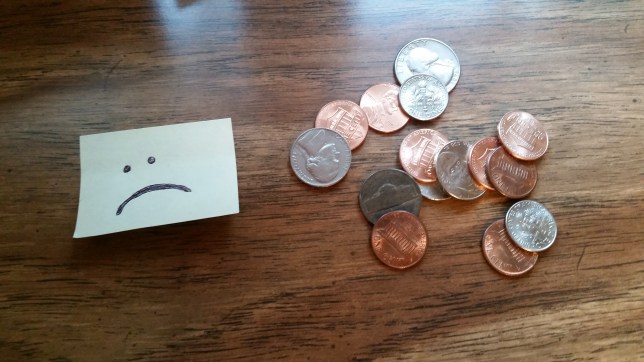
Feedback #2: This Game Won’t Make Money

Jack and I also envisioned Where Shadows Slumber as a straight-up pay-once premium title that doesn’t utilize any exploitative monetization schemes to bilk people out of their hard earned cash. Our belief was that if we were very honest with the community, they would reward us by purchasing the game at a fair market price and leaving a positive review on the App Store.

The feedback from the community has been monolithic: don’t do this! Trusting people to seek out fair trades in the marketplace is a fool’s errand. People are morons! Obviously they’ll never pay for a thing when they could not pay for a not thing. It’s so obvious!

Response #2: Loot Boxes Will Make Money!

We’ve become convinced that the premium model is no longer viable, and that modified premium models (such as a try-before-you-buy model) are not viable either. The people have spoken: they want free games with micro-transactions, in-game advertisements, and timers! 2018 is here, and we dare not defy the calendar year.

“Our goal is to make sure people can pay enough money to basically not even have to play the game.”

For this reason, shiny loot boxes are being added into the game and Where Shadows Slumber is officially going free-to-play! Loot boxes can be earned in-game by logging in once per financial quarter, but they can also be purchased via the main menu if you’re in a hurry! Inside every shiny loot box, you’ll have a chance to get an array of dizzying prizes. Just look at all of the cosmetic skins you can equip Obe with:

AprilFools-Skins.png

Left to right: Classic Obe, Spanish Inquisition Obe, Breath of the Wild Obe, ISIS Obe

But we won’t stop at just cosmetic items. Loot boxes aren’t fun unless they have a satisfying, tangible effect on the virtual world. We’re partnering with Electronic Arts to bring their popular Star Card system from Star Wars: Battlefront II into Where Shadows Slumber! People just can’t stop talking about about about about about about about these Star Cards. That’s how fun & satisfying they are!

AprilFools-Odds.png

Actual percentages included above, pursuant to Line 3 of Section 15 of the Unlawful Internet Gambling Enforcement Act of 2006

Star Cards in Where Shadows Slumber will allow you to power up Obe to make him the incredible puzzle-action hero of your dreams. If you don’t get a Star Card from a loot box, don’t feel bad! You can use the colorful Shadow Dust you’ve stockpiled to upgrade your Star Cards. Powerups include running faster, more lives-per-day, auto-skipping Levels, auto-skipping cutscenes, auto-skipping the credits, and even giving Obe a gun during cutscenes!

AprilFools-Gun.png

“Go ahead. Make my day.”

Why lootboxes, you ask? Here’s a quote from Jackson H. Kelly, our Chief Monetization Officer: “Our goal is to make sure people can pay enough money to basically not even have to play the game. We want to take the stressful, mentally challenging experience of solving a puzzle, and turn that into a swift, painless transaction.”

When asked what could justify such a sudden change, he said “People like paying for things at a cash register more than they enjoy playing games, so we’re going to encourage that.”

EA could not be reached for a statement.


AprilFools-WaitingMark.png

Feedback #3: Why Isn’t The Game Done Yet?

Jack and I also envisioned Where Shadows Slumber being released on the App Store and Google Play sometime during our lifetimes. However, due to the time constraints placed on this lil’ indie team (not to mention all of these exciting changes) we have not been able to get the game out the door just yet. However, fans are understandably frustrated. (see above) They want a release date to be announced! Today, I am proud to announce the date Where Shadows Slumber will be available for purchase on the App Store…

Answer #3: We’re Launching On Nov. 24th, 2067!

Just imagine. 2067. The “future” – at least, that’s what they used to call it. Now they just call it The Rinks. A beautiful array of orange cyber leaves crunch under your cyber boots as you walk down the idyllic cybewalk to the home you grew up in. Some punk kids skate by, chatting in a language that’s a mix of English, North Korean, and Blockchain. You walk through the front door (literally) to find your “family” huddled around a cyber television, tuned to the color of a dead sky. It’s Thanksgiving Day, 2067. What will you talk about with the androids that replaced your family? The ongoing war between Earth and Mars? The debate over the effectiveness of flying autonomous self-driving cars vs. self-automating driving flyers?

Never fear – there’s a brand new game available on the App Store called Where Shadows Slumber that you can download free of charge! Running on sleek, state-of-the-fifty-years-ago technology, Where Shadows Slumber is a free-to-play lootbox collecting game where one wrong move will rip the flesh from your cyber, cyber bones.* We hope you enjoy playing it as much as we enjoyed spending our entire lives creating it!

*Puzzles sold separately


AprilFools-Phone

Got More Feedback?

Jack and I are suckers for feedback. We just love hearing it! We just can’t get enough of your sweet, sweet, comments, haha, ha. My multiple chins and I are standing by, ready and willing to answer any and all emails, tweets, and creepy text messages you send me. Rest assured that if you contact Game Revenant with some feedback about Where Shadows Slumber, I will do my best to respond in 1-2 business years.

Thanks for reading this special edition of the blog, and Happy Easter by some strange coincidence!


= = = = = = = = = = = = = = = = = = = = = = = = = = = = = = = = = = = =

Happy March 32nd, ya filthy animal. Our regular blog posts will resume on Tuesdays, as always. You can find out more about our game at WhereShadowsSlumber.com, ask us on Twitter (@GameRevenant), Facebookitch.io, or Twitch, and feel free to email us directly at contact@GameRevenant.com.

Frank DiCola is the founder of Game Revenant and the artist for Where Shadows Slumber.

Help Us Test Where Shadows Slumber!

Hello everyone!

This week’s blog post is a quick announcement to let everyone know that the South By Southwest (SXSW) build of Where Shadows Slumber is available for testing. We brought 13 Levels to SXSW last weekend, and now you can play them on your phone!

(Do you want to join our open beta? Android users can sign up on their own by going to our Google Beta page. However, iOS users should email me at contact@GameRevenant.com to be added to our list!)


SXSW-Out-Header

What’s New In This Build

If you tested our previous build, you played the first 13 Levels of the game. The Worlds we showed off were the Forest, the Jail, and the River – in that order! This time, we took the River out (I’ve been working on it all week) and replaced it with the City. The City is actually World 4, so if you notice a spike in difficulty, that’s why. Like last time, this build is 13 Levels, with the 5 City Levels at the end. The first 8 will be the same. Sorry about that! Testing isn’t all glitz and glamour – sometimes it’s about playing the same thing over and over again until you find every last bug.

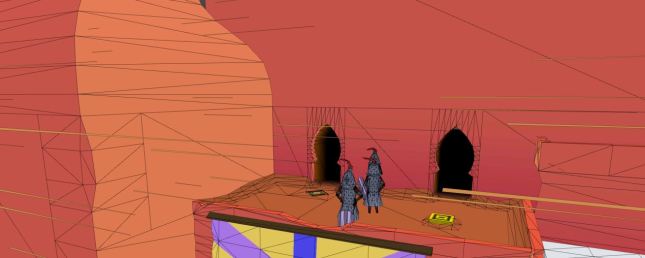
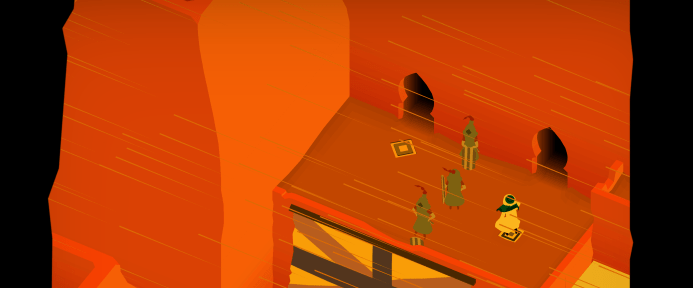
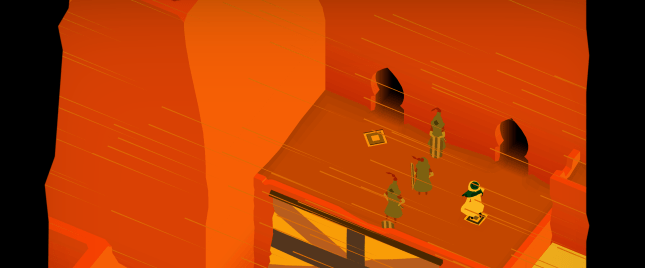
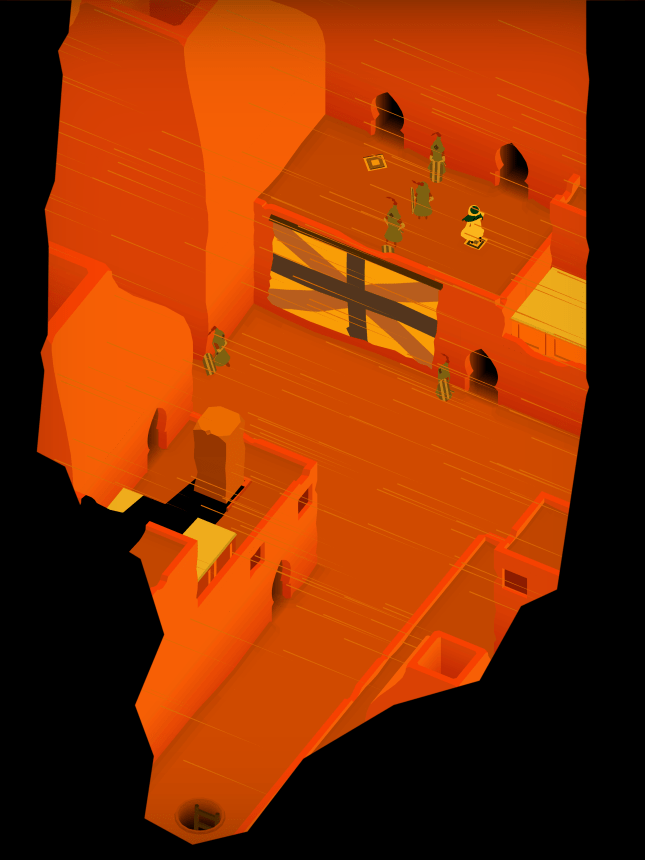
The City World is really cool – as you can see in the images posted here, it’s an impoverished desert city under heavy guard. The shadows from Obe’s lantern cascade over crumbling walls and the silhouettes of soldiers as you make your way to a palace on top of the city. All the while, a sandstorm is raging and Obe’s clothing flaps furiously in the breeze.

SXSW-Out-Slum.png

There’s one more surprise – we have cutscene animations now! They don’t have sound just yet, so your phone isn’t broken. (Don’t put that in the survey, we know already!) You’ll see both cutscenes right after you beat the third Level. There’s two in a row, for story purposes. Sorry about that. This won’t happen too often, but sometimes the story requires a climax at the end of one World followed by a brief intro to another.

There won’t be too many more beta tests, so please take this opportunity to download the build and try it out before we remove it from the store. To prevent people from getting full copies of the game or getting the experience spoiled, we may not release the full game to our open beta audience. Please test it and give us your feedback!


SXSW-Escape.png

“Which one of you is ‘Grongus’?”

What We’re Looking For

Please fill out the survey for this build! You can find it here, as a Google Form. Answer all of the required questions and as many of the optional ones as you have time for. We go through this feedback in detail as a time and it really helps us.

There are plenty of bugs we already found at SXSW, and we’re sure you’ll experience them too. Thanks for testing!

SURVEY LINK: https://goo.gl/forms/fkQHZBtnPnR8boWL2


= = = = = = = = = = = = = = = = = = = = = = = = = = = = = = = = = = = =

Thanks for testing our game! Feel free to share your thoughts on the most recent build in the Comments section. You can find out more about our game at WhereShadowsSlumber.com, ask us on Twitter (@GameRevenant), Facebookitch.io, or Twitch, and feel free to email us directly at contact@GameRevenant.com.

Frank DiCola is the founder of Game Revenant and the artist for Where Shadows Slumber.